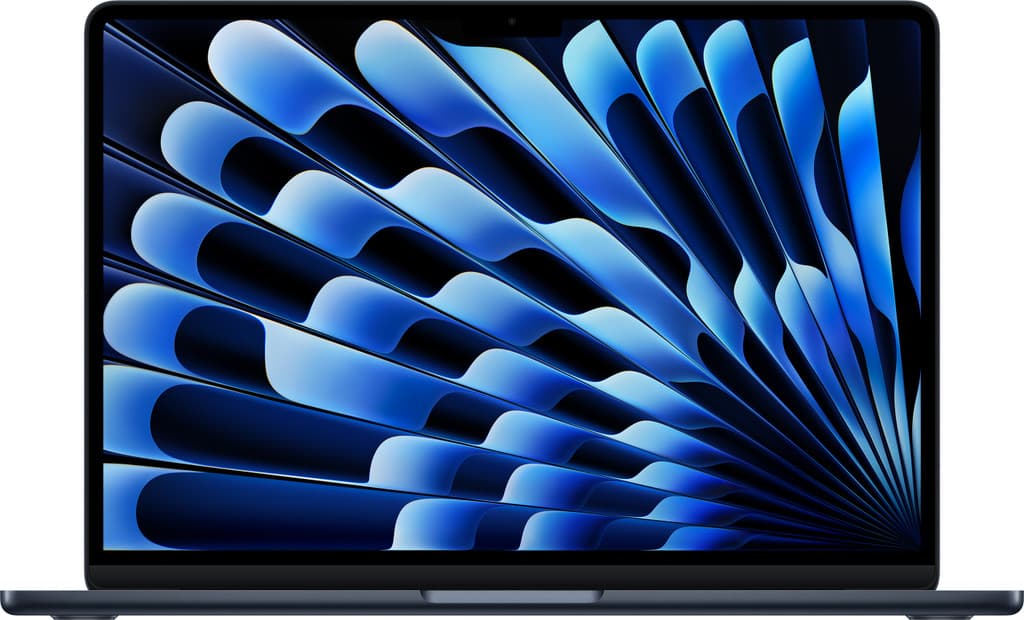
Is macOS Tahoe the ultimate upgrade for creators and devs? Explore our deep dive into performance, AI integration, and whether your hardware can handle the jump.
Introduction
With every iteration of macOS, Apple attempts to bridge the gap between high-end desktop power and the seamless, intuitive nature of its mobile ecosystem. macOS Tahoe represents a significant pivot point in this journey. Rather than focusing purely on aesthetic redesigns, this version leans heavily into "under-the-hood" optimizations, advanced artificial intelligence integration, and workflow refinements tailored for power users.
For students, designers, and developers, the decision to upgrade an operating system isn't just about getting new wallpapers—it’s about software compatibility, thermal efficiency, and whether the new feature set justifies the potential for initial bugs. This review dissects the core pillars of macOS Tahoe, evaluating its performance across different hardware tiers and identifying the specific trade-offs professionals must consider before clicking "Update Now."
TL;DR
- Performance: Exceptional optimization for M-series silicon, particularly in memory management for heavy multitasking.
- Key Features: Advanced Window Tiling, a dedicated Passwords app, and deep Apple Intelligence integration across the UI.
- Best For: Developers needing improved virtualization and Designers benefiting from enhanced color management and workspace organization.
- Watch Out: Initial third-party plugin instability and higher RAM overhead for AI-driven features on base-model Macs.
- Verdict: A solid, productivity-focused update that feels more like a refinement than a revolution, but one that is essential for those within the M-series ecosystem.
What’s New in macOS Tahoe
Apple Intelligence Integration
While previous versions introduced machine learning snippets, Tahoe embeds generative AI into the system's core. System-wide Writing Tools allow for rewriting, proofreading, and summarizing text in almost any field—from emails in Mail to code comments in Xcode. The most notable change is the Siri overhaul, which now features better contextual awareness and the ability to take actions across apps based on what’s on your screen.
Advanced Window Tiling
For years, Mac users relied on third-party apps like Magnet or Rectangle. macOS Tahoe finally introduces native, snap-to-grid window tiling. Dragging a window to the edge of the screen suggests a tiled position, allowing for instant split-view or quad-view configurations. This is a massive quality-of-life improvement for developers who need to keep documentation, a terminal, and an IDE open simultaneously.
The Passwords App
Taking the functionality out of System Settings and Keychain Access, the new Passwords app provides a centralized, cross-platform hub for managing credentials, Wi-Fi passwords, and verification codes. It simplifies the security workflow significantly for students and professionals who jump between multiple devices.
iPhone Mirroring and Notifications
Tahoe allows you to fully interact with your iPhone directly from your Mac desktop, even if your phone is locked or in standby mode. You can drag and drop files between devices seamlessly, which is a game-changer for social media managers and mobile developers testing apps.
Why It Matters: The Ecosystem Shift
This update matters because it signals Apple’s commitment to making the Mac the central "brain" of a user’s digital life. By allowing iPhone Mirroring and cross-device AI context, Apple is removing the friction that often exists when switching between mobile and desktop environments.
For the shopping-conscious consumer, this release also reinforces the longevity of M-series chips. While Intel-based Macs may see limited support for the more advanced AI features, the M1 through M4 chips are being utilized more efficiently than ever. If you are looking for a new machine to run this OS, checking out MacBook Pro deals is a smart move, as the hardware requirements for AI are becoming more pronounced.
Who Should Care: The User Persona Breakdown
For Students
Students will find the summarized transcripts in Notes and the redesigned Calculator (which now includes Math Notes for solving expressions) incredibly useful for STEM subjects. The ability to record and transcribe lectures directly into a formatted note is a major time-saver.
For Graphic Designers
Designers benefit from the improved "Game Mode" (which prioritizes GPU resources for intensive apps, not just games) and the refined color management profiles. The window tiling makes managing multiple Adobe Creative Cloud windows far less chaotic. If you use a multi-monitor setup, you might also want to look into the best external monitors for Mac to maximize Tahoe’s new layout capabilities.
For Developers
Developers are the biggest winners in terms of productivity. The improvements to the Terminal, better integration with Docker containers via virtualization enhancements, and the Siri-driven "on-screen awareness" for debugging assistance make Tahoe a compelling environment. However, the usual caveat applies: verify that your specific toolchain (Homebrew, specific Python versions, or Ruby gems) is fully compatible before moving your primary machine to the new OS.
Performance and Real-World Testing
Resource Management
In general testing, macOS Tahoe shows a slight increase in idle RAM usage compared to its predecessor, likely due to the background processes required for Apple Intelligence. On an M2 MacBook Air with 8GB of RAM, heavy multitasking felt slightly more constrained when AI features were actively indexing. However, on 16GB+ machines, the system felt remarkably snappy.
Battery Life and Thermals
One of the standout performance metrics is how Tahoe handles background tasks. The "Low Power Mode" has been refined to be less aggressive with screen dimming while still effectively throttling background syncs. Expect battery life to remain consistent with previous versions, though initial indexing (first 24-48 hours after install) will cause temporary drain and heat.
Graphics and Rendering
For those involved in 3D rendering or video editing, Tahoe’s Metal 3 support provides smoother frame rates in viewport previews. While we don't use specific synthetic benchmarks here, the subjective experience in Final Cut Pro and Blender suggests that the overhead for OS-level tasks has been minimized to give more headroom to professional apps.
Known Issues and Stability Concerns
No OS launch is without its friction. Here is what we have observed during the initial rollout phase:
- Legacy Plugin Compatibility: Several audio units (AU) and older VST plugins for music production have reported crashes in Logic Pro.
- External Display Flickering: A small subset of users with third-party USB-C docks have noted intermittent display flickering, often resolved by a PRAM reset or firmware updates to the dock.
- Storage Indexing: The new AI features require a significant amount of initial disk indexing. If your drive is nearly full, you may experience significant lag. Check out our guide on how to optimize macOS storage if you are low on space.
- Privacy Prompts: Tahoe is more aggressive with privacy permissions. Expect to be prompted multiple times when apps try to access local network data or screen recording features.
What to Watch Next
As Apple moves into the mid-cycle of macOS Tahoe, watch for the expansion of Apple Intelligence features to more languages and regions. We also expect further integration between the Mac and the Vision Pro headset, potentially allowing for multiple virtual displays beyond what is currently possible.
If you are currently on an Intel-based Mac, this might be the final cycle where your machine receives "full" feature support. It is worth monitoring iPad Pro discounts as Sidecar functionality continues to improve, making the iPad an even better secondary tool for Tahoe users.
FAQs
1. Is macOS Tahoe a free update? Yes, macOS Tahoe is a free software update for all compatible Mac hardware. You can find it in System Settings > General > Software Update.
2. Which Macs are compatible with macOS Tahoe? Generally, Macs from 2020 and later (M-series) are fully supported. Some Intel-based models from 2018-2019 may receive the update but will lack Apple Intelligence features.
3. Will my professional apps (Adobe, Microsoft 365) work? Most major developers have updated their apps for Tahoe. However, if you rely on niche specialized software or older drivers for hardware peripherals, check the developer’s website first.
4. Does the new window tiling replace apps like Magnet? For most users, yes. It provides the core functionality of snapping windows to halves, quarters, and thirds. Power users who want highly specific custom layouts might still prefer dedicated third-party tools.
5. Can I downgrade if I don't like it? Downgrading is possible but difficult. It requires a full Time Machine backup from your previous OS version and a complete wipe of your drive. We recommend testing on a secondary partition if you are unsure.
6. How much storage space do I need for the installation? It is recommended to have at least 25-30GB of free space to download the installer and allow the system to perform the upgrade safely.
Next Steps
- Back Up Your Data: Before any major OS update, ensure you have a fresh Time Machine backup or a clone of your drive.
- Audit Your Apps: Open your most critical work applications and check for available updates to ensure they are Tahoe-ready.
- Clear Disk Space: Remove large unneeded files to ensure the indexing process doesn't throttle your system performance.
- Check Hardware Compatibility: If you are on an Intel Mac, evaluate whether the lack of AI features makes this a good time to trade in for an M-series machine.
- Install in a Window: If possible, perform the update during a period of downtime (like a weekend) so the background indexing doesn't interfere with your workday.